
Start with a Dozen: Build a Resource Library for Coaches & Creators
A practitioner-first plan for coaches and creators to launch a searchable, well-tagged resource library fast. Start with one page and a dozen assets.
By the Hopper team
The fastest useful resource library is one embedded page with a searchable index, real metadata on every file, and a single opt-in gate. That combination gets you findability, reuse, and lead capture without a single line of custom code. Before you touch a platform or a plugin, pull every asset you already have, worksheets, templates, replays, PDFs, into one folder. That audit is the actual starting line.
TL;DR:
- Most libraries are most effective when starting as a single searchable page with a dozen well-tagged assets, rather than complex faceted systems.
- Proper metadata, including title, description, tags, and format, is critical for searchability and should be consistent across all assets.
- Building a library requires an audit of existing assets, clear organization by topic and audience, and a simple naming convention to avoid chaos over time.
- A basic MVP library can be set up in hours or days using free tools, but larger, gated, or custom libraries demand several weeks to months and a proper budget.
- Maintenance, including regular updates and assigning a curator, is more important for long-term usefulness than initial complexity or scale.
Table of Contents
- What Is a Resource Library, and Who Should Build One?
- Why Build a Resource Library? The Business Case
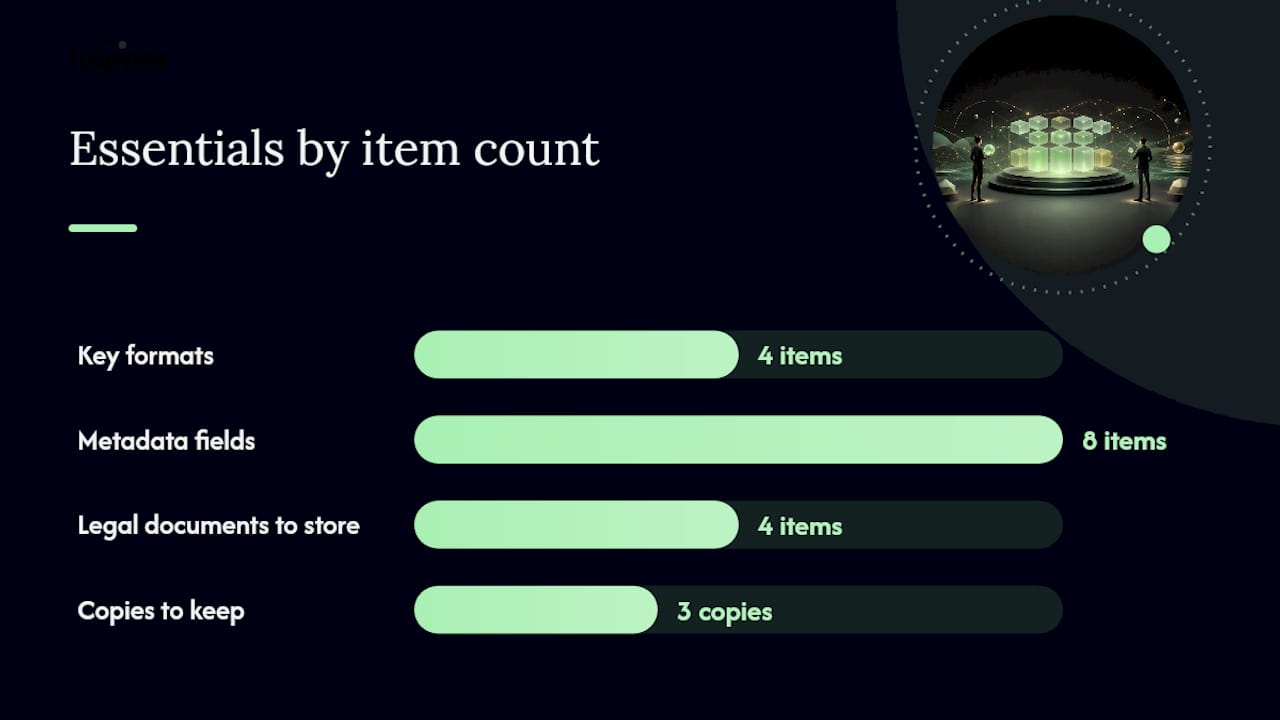
- What to Include: Formats, Metadata, and License Notes
- How to Organize: Taxonomy, Naming, and Version Rules
- How to Build the Library, Step by Step
- Design and Discoverability: Search, Filters, and Accessibility
- Maintenance, Promotion, and the Metrics That Matter
- What Does It Actually Cost to Build a Resource Library?
- What I've Learned Building and Migrating These Libraries
- The Case for Starting Smaller Than You Want To
- An All-in-One Option for Coaches Who Would Rather Not Build This Alone
- Sources
- FAQ
What Is a Resource Library, and Who Should Build One?
A resource library is a curated collection of downloads, media, and links organized so the right person finds the right asset fast. This includes PDFs, templates, video and audio replays, worksheets, slide decks, and even outbound links to tools you recommend. It is not a file dump. A file dump has no metadata, no search, and no owner.
Marketers, coaches, educators, and internal ops teams all build these for different reasons, but the mechanics barely change. A marketer wants gated content that captures emails. A coach wants a place to house session replays and worksheets so clients stop asking "where's that PDF you sent me?" An internal team wants onboarding docs that do not live in someone's inbox.
There is a real difference between an MVP library, a single searchable page with a dozen well-tagged assets, and a large custom library with faceted search, gated tiers, and a dedicated engineering budget. Almost everyone should start with the former. A smaller curated library that fits your existing workflow beats a sprawling, half-organized one every time.
Why Build a Resource Library? The Business Case
A resource library is a distribution machine for work you have already done. Every asset you upload once keeps paying you back, in email addresses, in time saved, and occasionally in search traffic.
The lead generation math is simple: gate your best template or checklist behind an email opt-in, and every download becomes a new contact. Coaches running cohort programs use this constantly to fill waitlists between launches.
The efficiency case is less talked about but often bigger. Once a template lives in one documented, tagged location, your team stops rebuilding it from scratch or hunting through old email threads. Introducing documented templates and checklists measurably cuts rework once teams compare completion times before and after.
A few concrete outcomes to design around:
- Lead capture: gate one high-value asset behind an opt-in instead of your whole library.
- Reuse savings: stop rebuilding the same slide deck or intake form every quarter.
- Shareable SEO value: a genuinely useful free template earns organic links on its own.
- Retention: members who can self-serve past resources stick around longer than members who have to ask you for everything.
What to Include: Formats, Metadata, and License Notes
Support a narrow set of formats well rather than every format badly. Most libraries need PDFs, editable templates (Google Docs, Canva, Notion), audio and video replays, and outbound links or embeds for tools you recommend. Anything beyond that is probably overkill for a first build.
Every asset needs the same metadata fields, no exceptions, or your search and filters will fall apart within a month:
- Title — plain language, not a file code
- Description — one or two sentences on what it solves
- Tags — topic, audience, and format at minimum
- Format — PDF, video, template, link
- Date added or last updated
- Author or creator
- Software required (if it is an editable template)
- Version number
Legal fields matter more than most people budget for. Store the license text, the original source link, the purchase receipt if you paid for stock media or a template, and a note on whether the asset is original or licensed. Practitioner guidance on organizing digital collections recommends keeping the original download, working copies, receipts, and license documentation together in one clearly named folder with a reliable backup.
Pro Tip: Keep three copies of every asset: an untouched master, a working copy you actually edit, and a backup somewhere outside your main drive. Skipping the master copy is how libraries quietly rot over eighteen months.
How to Organize: Taxonomy, Naming, and Version Rules
Pick four taxonomy axes and stop there: topic, audience, format, and skill level — a strategy inspired by the PARA method: organise your digital life in four buckets. Everything else, brand, campaign, internal project code, becomes a secondary tag layered on top, not a folder of its own. Too many primary categories is the single most common reason libraries become unusable within a year.
Naming conventions sound trivial until you are hunting for "final_v2_REAL.pdf" at 11 p.m. Use a pattern like topic_format_YYYYMMDD_v1 (for example, onboarding-checklist_pdf_20260214_v1). Bump the version number every time you make a substantive edit, and never overwrite a master file directly.
A clean folder layout underneath that naming system looks like this:
- Master — untouched originals, never edited directly
- Working — the copy you actively revise
- Downloads — the finished, published version members actually see
- Project notes — briefs, feedback, and revision history
- License docs — receipts, usage rights, and source links
Building a proper master resource database means treating that structure as non-negotiable from day one, not something you retrofit later.
For search, prioritize title, tags, and format as your indexed fields. Description matters for relevance but rarely for exact-match search. If you support video, transcripts are worth the extra step, they get indexed and they make your content accessible.
How to Build the Library, Step by Step
You can go from a messy folder to a published, working library in under two weeks if you time-box each stage.
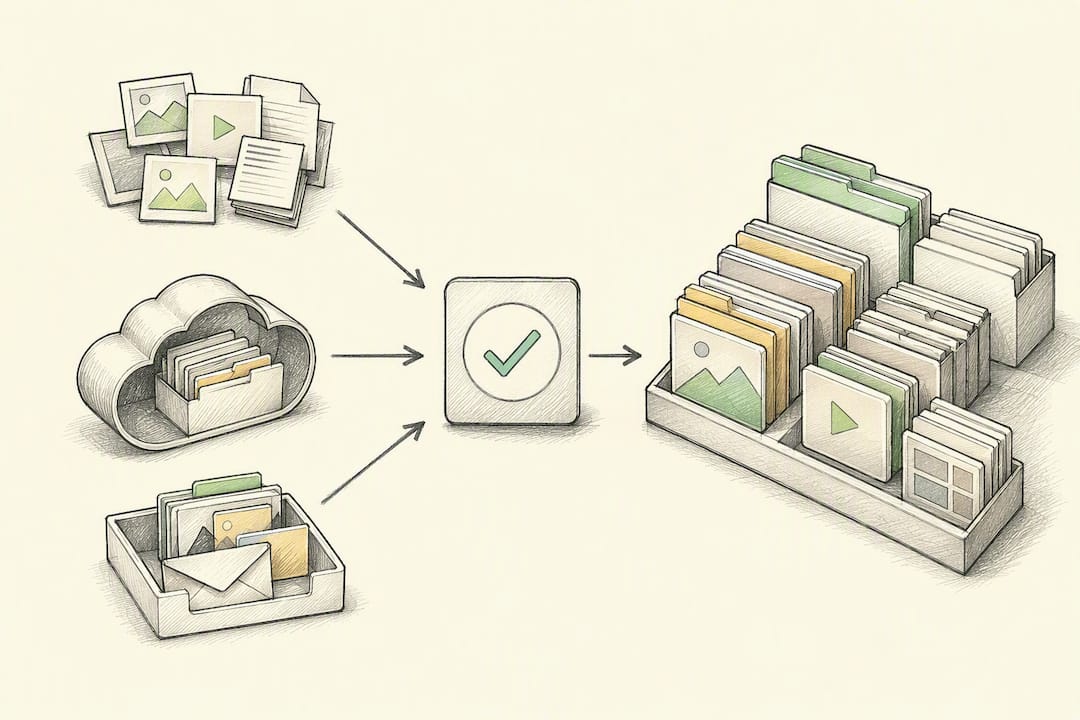
- Audit everything you have. Pull every asset into one staging folder. Sort each into keep, revise, or retire. Retire anything outdated, off-brand, or duplicated.
- Choose your hosting approach. An embedded page on your existing CMS works for most people starting out. A dedicated hub with built-in community and storefront features suits creators who plan to gate content behind membership. A standalone hosted platform makes sense only if you need heavy custom search.
- Set your metadata schema before you upload anything. Use the eight fields from the previous section. Bulk-import through a spreadsheet if your platform supports it, this saves hours over manual entry.
- Implement access rules and lead capture. Decide which assets are free, which require an email, and which sit behind a paid tier. Test the actual download flow yourself, on desktop and mobile, before inviting anyone else in.
- Run a prelaunch QA pass. Search for five random assets by title and by tag. Load the page on a phone. Check that PDFs and images have basic alt text. Confirm your analytics are firing on every download click.
| Stage | Time estimate | What can go wrong |
|---|---|---|
| Audit | 2 to 4 hours | Skipping the "retire" pile, keeping dead links |
| Hosting choice | 1 day | Picking a platform before defining your metadata needs |
| Metadata and upload | 2 to 5 days | Inconsistent tags across assets |
| Access and opt-ins | 1 day | No test of the actual download flow |
| QA and launch | 1 day | No mobile test before going live |
Design and Discoverability: Search, Filters, and Accessibility
Search relevance lives or dies on your metadata, not your search engine. Title, description, tags, and format are what any decent site search or filter system indexes, so garbage tags produce garbage results no matter how good the underlying software is.
Filters should map to how your members actually think, not how you organized your folders. Category, format, audience, and difficulty level cover most use cases without overwhelming a first-time visitor with fifteen checkboxes.
Mobile-first design is not optional anymore. A large share of all website traffic now comes from mobile devices, so a library that only works well on a laptop is quietly losing a meaningful chunk of its audience before they even find the download button.
A short checklist worth running before launch:
- Test every filter combination on an actual phone, not just a resized browser window.
- Add transcripts for video and audio so both search and screen readers can use them.
- Use descriptive alt text on thumbnails and preview images.
- Confirm tap targets (buttons, filters) are large enough for a thumb, not a mouse cursor.
Pro Tip: If you only have time to fix one accessibility issue before launch, add transcripts. They boost search relevance and accessibility in the same move.
Maintenance, Promotion, and the Metrics That Matter
A resource library without an owner turns into a graveyard within two quarters. Assign one curator, even if that is just you, and set a real cadence, monthly for a small, active library, quarterly for something more stable.
Promotion does not need to be complicated. Embed direct links to specific assets in emails instead of a generic "check out our library" line. Repurpose old blog posts or social content into downloadable versions. Reach out to a few sites in your niche about linking to your best free template.
Track a small number of metrics, not a dashboard full of vanity numbers:
- Downloads per asset — tells you what is actually valuable versus what is dead weight.
- Opt-in conversion rate — how many visitors trade an email for a download.
- Searches that lead to a download — flags gaps in your metadata or missing assets.
- Time to first download — how long a new visitor takes to find something worth grabbing.
Cost and timeline both hinge on the same handful of decisions: how complex your search needs to be, whether you are migrating years of old files, whether you need a custom-built interface, and whether access sits behind a paid gate.
What Does It Actually Cost to Build a Resource Library?
Budget and timeline scale almost entirely with scope, not with how "professional" the final result looks.
| Scale | Time investment | Typical cost driver |
|---|---|---|
| MVP (embedded page, a dozen assets) | A few hours to 2 days | Your own time; free or low-cost tools |
| Mid-level library (tagged, searchable, opt-in gated) | 1 to 3 weeks | SaaS subscription fees, some contractor design time |
| Large custom library (faceted search, tiered access) | Several months | Engineering time, custom UI, ongoing hosting |
Real library projects, even physical ones, follow the same pattern: planning and phased delivery determine both timeline and budget far more than the size of the final collection does. The decision checklist that actually moves your cost: how complex your search needs to be, whether you are migrating an existing mess of files, whether you need custom UI work, and whether you are gating access behind payment or membership.
What I've Learned Building and Migrating These Libraries
Most creators over-plan the taxonomy and under-plan the migration. If you already have three years of PDFs scattered across Dropbox, Google Drive, and old email attachments, the audit stage is where projects actually die, not the design stage.
The highest-leverage shortcut I have seen work is a one-page README for the whole library: what belongs here, what the naming convention means, who owns updates. Pair that with sample outputs so contributors know what "done" looks like before they upload anything.
Preserve your master copies obsessively. A single overwritten master file can cost you hours of reconstruction, and it is the most common self-inflicted wound in a first-year library.
The Case for Starting Smaller Than You Want To
Most advice on this topic pushes you toward building the complete system first: full taxonomy, tiered access, custom search, gated tiers for every membership level. That advice is backwards for almost everyone reading this.
The libraries that actually get used are the ones that started as a single page with a dozen well-tagged assets and grew from actual member requests, not from a whiteboard session. Complexity you add before anyone has used the thing is complexity you are guessing at. Complexity you add after someone has asked for it three times is complexity you know is worth building.
The conventional wisdom oversells taxonomy and undersells maintenance. A library with four clean tags and a monthly update cadence will outperform a library with twenty tags and no owner within six months. If you take one thing from this guide, prioritize naming, metadata, and a real cadence over search sophistication. Sophistication is easy to add later. A rotted, untagged pile of old PDFs is much harder to fix once members have already stopped trusting it.
— Cedrik
An All-in-One Option for Coaches Who Would Rather Not Build This Alone
If you are a coach or course creator reading the build steps above and picturing three more tools you would need to stitch together, a hosted content library with community and storefront features built in solves the assembly problem directly. Hopper gives you a Library for unlimited video, audio, and replays, a Discussions feed for your members, and a public landing page that showcases every product, all inside one hub, at a flat monthly price starting at an affordable rate.
That matters most if you are currently paying separately for a course host, a community tool, and a link-in-bio page, and watching each one raise its price as your list grows. Hopper does not cap members or contacts, and you can run multiple hubs under one account if you manage more than one brand or program. Real coaches have already moved their tool stacks over and cut costs in the process.
If your library is outgrowing a single embedded page and you are tired of juggling logins across four platforms, take a look at Hopper and start a trial to see whether a single hub covers what your current stack does today.
Sources
- Share of website traffic coming from mobile devices — Statista
- How to build a library — American Libraries Magazine
FAQ
What Is a Resource Library?
A resource library is an organized collection of downloadable and linked assets, PDFs, templates, videos, audio, tagged with metadata so members or visitors can search and filter to find exactly what they need.
How Much Does It Cost to Build a Resource Library?
An MVP library built on an existing website can cost close to nothing beyond your own time; mid-level libraries with SaaS tools typically run for a subscription fee over one to three weeks, while large custom builds with engineering and design work can take several months and a real budget.
What Is the "Rule of Five" in Libraries?
Definitions of this rule vary by context and industry, so treat any specific version with caution; the safer, better-supported principle for a digital resource library is to start small, four or five taxonomy tags at most, and expand only once members show you what they actually need.
What Are the Main Types of Resource Libraries?
Most fall into four practical categories: a simple embedded page on an existing site, a gated library tied to email opt-ins, a membership-based hub like Hopper that bundles the library with community and storefront features, and a large custom-engineered platform built for enterprise scale.
Recommended
On our list and want off? .